Official downloads and installation guide

Shadowrocket All-platform downloads

Choose how to get Shadowrocket for your device, then check system and architecture requirements. iPhone and iPad cost $2.99 once on the App Store; Mac, Windows, Android and Linux versions are free.

Current version · iPhone and iPad cost $2.99 once on the App Store; Mac, Windows, Android and Linux versions are free

Download source
iPhone / iPad: App Store
Other platforms: packages from this site
Two pricing tiers
iPhone / iPad: $2.99 one-time
Mac / Windows / Android / Linux: free
Developer
Shadow Launch Technology Limited
App ID
932747118

Choose an installer by device

Device-aware buttons offer a quick selection, while links for all five platforms remain available below. If you are browsing on a different device, select the platform you need. Check your Mac's chip and your Linux distribution's package format.

iPhone / iPad

$2.99 one-time. Mac, Windows, Android and Linux versions are free. Get the iPhone and iPad versions from the App Store; both devices share one purchase when using the same Apple ID.

System requirements: iOS / iPadOS 13.0 or later; check the App Store page for details.

Open the product page, verify the developer and App ID, then follow the store prompts to purchase and install. The local-currency price shown by the store is the current price. If the app appears unavailable, check the store-region guidance on this page rather than repeatedly searching for entries with the same name.

Mac

Free. iPhone and iPad cost $2.99 once on the App Store; Windows, Android and Linux versions are also free. This site provides DMG installers for Apple Silicon and Intel Macs.

System requirements: macOS 12 or later.

Check your processor type, then download the matching file. Open the DMG, move Shadowrocket to Applications, then launch it from there. If macOS blocks the first launch, follow the installation guidance below.

Not sure which one to choose? Open About This Mac and check Chip / Processor.

Windows

Free. iPhone and iPad cost $2.99 once on the App Store; Mac, Android and Linux versions are also free. The Windows package is a 64-bit EXE installer.

Architecture: x64, 64-bit Windows.

Check System type under Settings → System → About, then download and run the installer. If SmartScreen appears, confirm the download came from this site, then follow the installation guidance below. Computers managed by an organization may require administrator approval.

Android

Free. iPhone and iPad cost $2.99 once on the App Store; Mac, Windows and Linux versions are also free. The Android package is an arm64 APK installer.

Architecture: arm64, supported by most popular phones and tablets from recent years.

We recommend opening this page in your system browser to download the package. Installation may require permission for the current browser to install unknown apps. This permission applies to the app initiating the installation, not to all apps. You can return to Settings and turn it off after installation.

Linux

Free. iPhone and iPad cost $2.99 once on the App Store; Mac, Windows and Android versions are also free. Choose a Linux package based on your distribution, not your browser.

Architecture: x86_64; amd64 in a DEB filename denotes the same architecture.

Use .deb for Debian / Ubuntu, .rpm for Fedora / openSUSE, or AppImage for other distributions. AppImage files need execute permission. If your package manager reports a dependency issue, check the specific error instead of repeatedly opening the same file.

After downloading, install the app and complete the first launch before importing connection details. A successful download only means the file was saved to your device; it does not mean a server is configured. If a button does not start the download, check your browser's download list and save location to avoid saving multiple copies.

First launch and installation warnings

The desktop and Android installers from this site are unsigned, so your system may block the first launch. First confirm you downloaded the file using this page's download button, then follow the steps for your system. If the file's source is unclear, do not open it; return to this page and download it again.

System and warningStepsWhat to check afterward
Windows
SmartScreen: "Windows protected your PC"
Click "More info," then select "Run anyway." Follow the installer prompts to complete installation. Confirm you are running the installer you just downloaded. If the option is missing or an organization policy blocks it, contact your device administrator. Do not disable system-wide protection.
macOS
"Cannot verify developer"
Try opening the app once, then go to System Settings → Privacy & Security, find the blocked app entry, click "Open Anyway," and confirm. The app should be in Applications. macOS may ask for your device password or Touch ID. This confirms the action on your device; it is not a server password.
macOS
"App is damaged" warning
Confirm the app came from this site and is in Applications, then run this command in Terminal:
xattr -cr /Applications/Shadowrocket.app
The command applies only to the app at the path shown above. Open Shadowrocket again afterward. If it still fails, download the installer for your chip again and review the system warning.
Android
Installation from this source is not allowed
Follow the prompt to open the current browser's Install unknown apps page. Turn on Allow from this source, then return to the installer. Wording may vary slightly between systems. Grant permission to the browser that downloaded and launched the installer. You can turn off this permission after installation. If the built-in browser cannot download the file, open this page in your system browser.
Linux
AppImage does not have execute permission
In Terminal, type chmod +x, add a space, then drag the downloaded AppImage file into the window. Check the full path and run the command, then open the file. The file should be in a location where programs can be executed. If it still will not open, check the Terminal output to distinguish permission, runtime dependency and architecture issues.
Linux
Installing a DEB package
Open Terminal in the folder containing the downloaded file and run a command in this format. Replace "filename" with the actual downloaded filename:
sudo apt install ./filename.deb
Check that the package manager completed installation and handled dependencies. On RPM distributions, open the corresponding .rpm file with the distribution's package installer.

iPhone / iPad App Store region

This section applies only to iPhone and iPad. The app is not available in the mainland China store. The country or region associated with your Apple ID determines which store you see. Your device's system language, time zone and current network location do not change its store region. Changing your phone's language and searching again will not make the app available to an account whose store does not offer it.

Open Settings → Apple ID → Media & Purchases and check the account signed in there. The account used for media purchases may differ from the one used for other Apple services on your device. Use the account shown under Media & Purchases when checking purchase history and store region.

To check the region, go to Settings → Apple ID → Media & Purchases → View Account → Country/Region. If you need to change it, open Change Country or Region from the same page and follow the listed requirements. Account balance, active subscriptions, Family Sharing status and payment details may affect the process. Follow the prompts shown for your account.

After checking the region, open the specified product page using the App Store button on this page instead of choosing an app based only on its name in search results. Even when the product link includes the US storefront path, access and purchase availability still depend on your account's store region and device compatibility. If you see an unavailable message, read it carefully, then review the checks in this section.

If you have already purchased the app, check your purchased items first rather than buying it again under another account. Store-region issues occur while getting the app; connection issues are a separate matter to troubleshoot after installation, importing details and testing the connection.

See the official App Store access guide ›

Check product details and the official interface

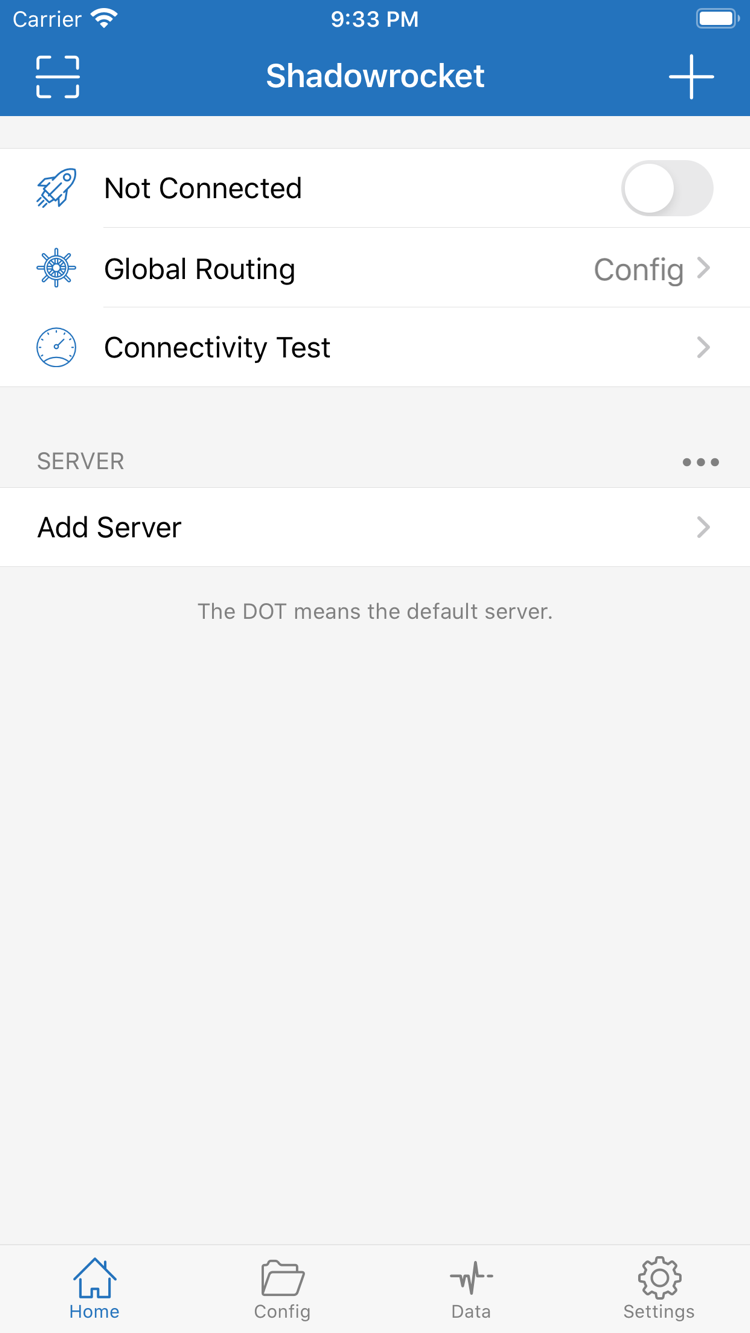
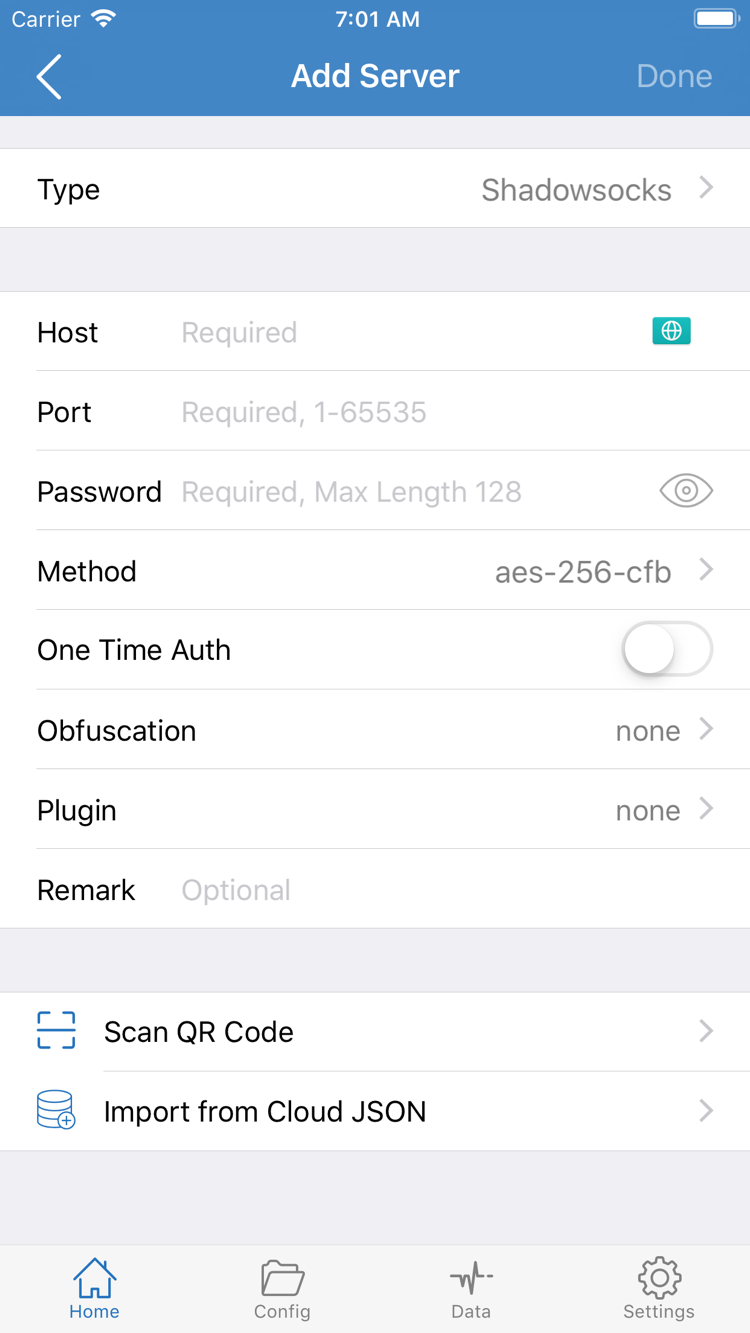
Apps with the same name are not necessarily the same product. For iPhone and iPad, check the App Store listing; for other platforms, verify the installer source. The two images on the right are official App Store screenshots. Use them to identify the Home and Add Server screens, not to check your device's current connection status.

Three App Store checks

  1. Developer: Confirm the product page lists Shadow Launch Technology Limited. Check the developer information rather than relying on descriptive text in search results.
  2. Official icon: A rocket with a blue-purple outline on a white background. Treat the icon as one check, and verify the developer and App ID as well.
  3. App ID: The product link should contain id932747118. Every App Store download button on this page links to that product page.

iPhone and iPad cost $2.99 once on the App Store; Mac, Windows, Android and Linux versions are free. A listing with the same name that is priced as free in the App Store is an imitation, not the same as the free installers for other platforms on this site. If you already purchased the app, the correct product page may show a download or open button; check your purchase history as well.

Installer source on this site

Installers for Mac, Windows, Android and Linux are provided under this site's /dl/ path. Start from the relevant platform card on this page and check the architecture and file format. Do not rely on the filename, icon or a third party's description alone to identify the source, and do not treat modified files from other sources as installers published here.

What to look for after installation

The official Home screenshot includes the connection switch, Global Routing, Connectivity Test and a SERVER group. Add Server includes fields such as Type, Host, Port, Password and Method. These screenshots show the English interface as a reference. The language, content and visible fields on your device vary with your settings and selected Type.

Not Connected on Home means you are not connected; it does not mean the installation failed. Add Server does not automatically create usable connection details. Get your own subscription or server details from your service provider, then follow the guide to import them. This site does not provide, sell or recommend nodes or subscriptions.

Official Shadowrocket Home screenshot showing Not Connected, Global Routing, Connectivity Test, SERVER and Add Server
Home: Locate the connection controls and server list. The screenshot does not reflect your device's current status.
Official Shadowrocket Add Server screenshot showing Type, Host, Port, Password, Method, Scan QR Code and Import from Cloud JSON
Add Server: Enter your own server details; fields depend on the selected Type.

Switching devices, reinstalling and restoring purchases

iPhone and iPad cost $2.99 once on the App Store; Mac, Windows, Android and Linux versions are free. iPhone and iPad share one purchase when you use the same Apple ID that completed the purchase. After switching devices, restore the original purchase first, then handle connection details on the new device.

On the new device, open App Store → Account → Purchased, find Shadowrocket and download it again. Depending on your system version, the account page may show Apps first; open My Apps from there. Check the product name and developer. Restoring with the account used for the original purchase does not require another payment.

If you cannot find the purchase, first check whether the account currently signed in under Media & Purchases matches the one used to buy the app. Then check the filters on the purchased list. Being able to open the app on an old device does not mean the account currently signed in on a new device has the same purchase record. Do not repeatedly tap the purchase button to test an account.

Restoring the app and restoring configuration are separate tasks. After installation, import your own subscription, server details or previously saved configuration. Get subscription links from your service provider and make sure they are still valid. Recheck the default server, Global Routing and On Demand settings from your old device on the new one.

When switching computers or Android devices, return to this page and download the installer for the appropriate architecture. You can save configuration details you need before migrating, but avoid storing configurations containing credentials in public folders or sharing them with others. To update desktop and Android apps, download the installer again from this page; App Store manages updates for iPhone and iPad.
Two pricing tiers and connection details

iPhone / iPad: The US App Store price is $2.99, paid once with no monthly charge. Other storefronts display local-currency prices; check the store page. Mac, Windows, Android and Linux: The corresponding versions from this site are free. Choose the installer for your platform.

Purchasing the app does not establish a working connection, and downloading it does not fill in server details automatically. A subscription provides and updates connection details; a configuration file contains rules, policies and related settings. They serve different purposes, so check whether you have a subscription link, individual server details or a configuration file before importing it.

For your first session, verify one connection before changing rules or On Demand. After importing details by following the guide, choose a default server, check Global Routing, turn on the connection switch and run Connectivity Test. If the test fails, first check that your details are complete, the subscription is valid and your local network is available instead of repeatedly reinstalling the app.

If you use the app on several of your own devices, check the terms of your existing service to see whether the same subscription can connect on multiple devices at once or requires separate server parameters. App access and service terms are managed separately; the app's price does not determine device limits for connection services.

Continue to the subscription import and first connection guide ›

Download and installation FAQ

Can I use Shadowrocket on a computer or Android phone?

Yes. Mac, Windows, Android and Linux versions are free. Choose the package for your device architecture on this page. iPhone and iPad cost $2.99 once on the App Store. All platforms require you to import your own subscription or server details.

Which Mac version should I choose: Apple Silicon or Intel?

Open About This Mac from the Apple menu. Choose the Apple Silicon version if the Chip field shows Apple Silicon; choose the Intel version if the Processor field shows Intel. Both packages require macOS 12 or later.

What should I do if Windows shows a risk warning?

First confirm that the package came from this site's /dl/ path. If SmartScreen displays "Windows protected your PC," click "More info," then click "Run anyway." If your device is managed by an organization and that option is unavailable, contact your device administrator. Do not disable system-wide protection.

What should I do if I can't find Shadowrocket in the App Store?

This app is not available in the mainland China store. Check the Country/Region for the Apple ID signed in under Media & Purchases, then open the App Store product page linked here. Visibility depends on your account's store region. Check the App Store page for system compatibility requirements.

Do I have to pay again when switching devices or reinstalling?

iPhone and iPad cost $2.99 once on the App Store; Mac, Windows, Android and Linux versions are free. Sign in with the Apple ID used for the original purchase to redownload the iPhone or iPad version from your App Store account's Purchased items. On other platforms, download the appropriate package again and reimport your own connection details.

Can I install it on iPad, and is the purchase shared with iPhone?

Yes. iPhone and iPad cost $2.99 once on the App Store, and both devices share one purchase when using the same Apple ID. Mac, Windows, Android and Linux versions are free. Check the App Store page for iPad system requirements. A purchase record does not replace importing subscriptions and configuration on the device.

This page is part of the Shadowrocket official guide. After installation, follow the guide to check your connection details. Subscription links contain access credentials; do not post them in public comments, screenshots or support requests.