Shadowrocket Setup Guide
Start with an existing subscription, then add it, configure routing, connect, and verify. For the initial setup, establish one working connection before adjusting rules or On Demand conditions.
If a server entry is already available, start at Step 02. If the switch is on but access is not working as expected, go directly to Steps 04 and 05.
STEP 01 / IMPORT
Add a Server and Import a Subscription
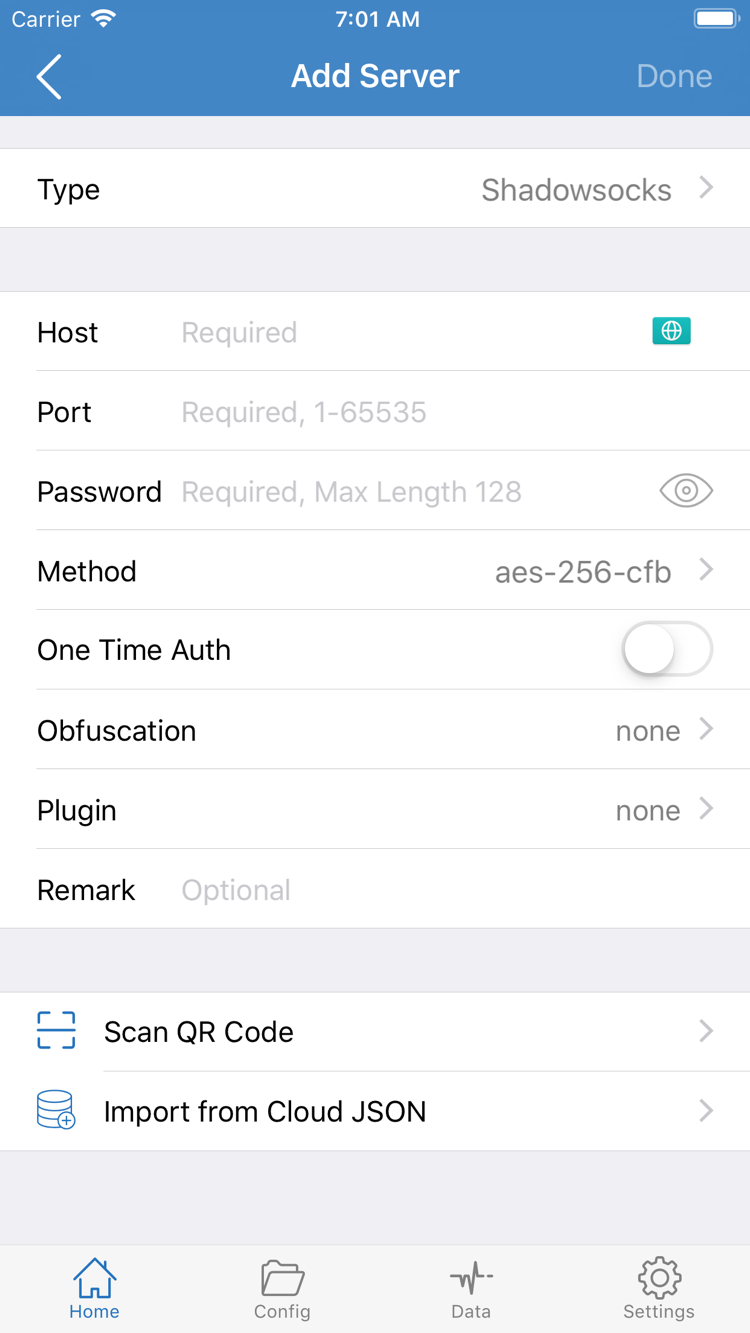
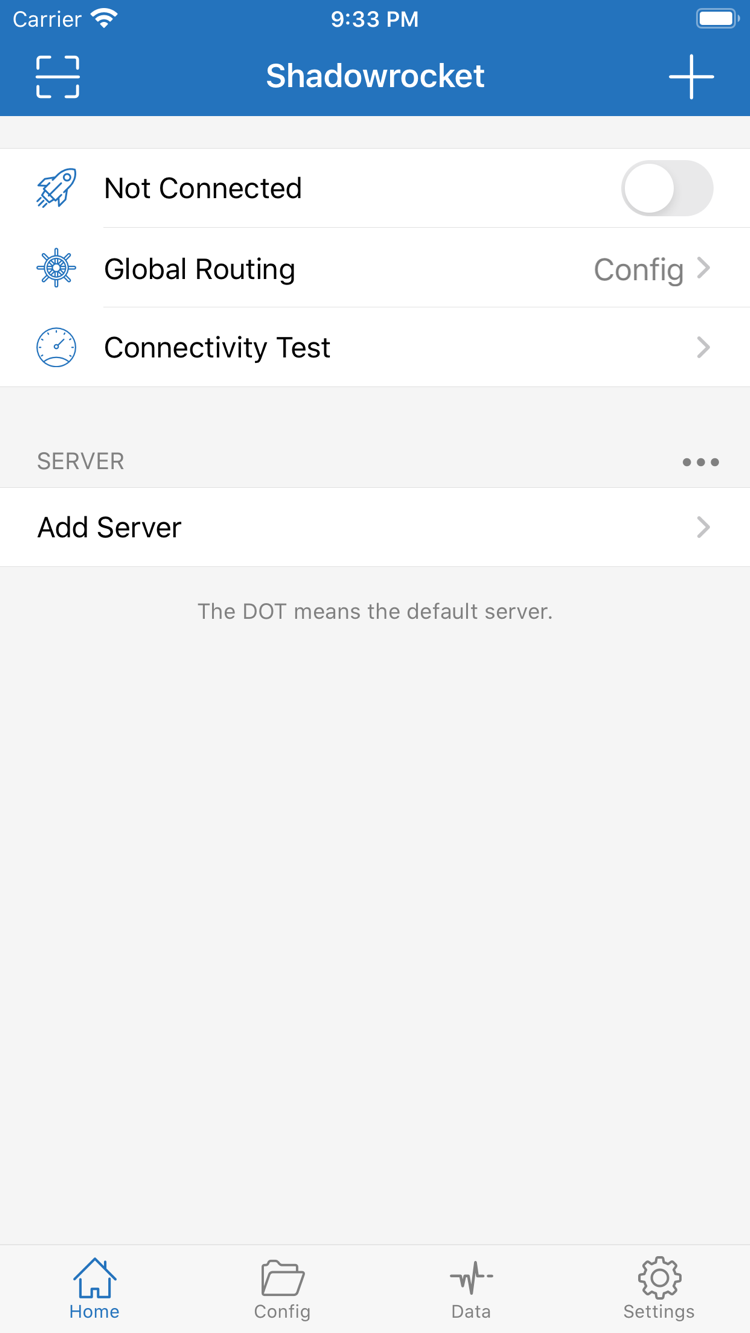
After opening Shadowrocket, stay on Home. The SERVER group below lists servers; if it is empty, tap Add Server. On the add screen, the first item, Type, determines which fields you need to fill in. A subscription link and an individual server's parameters are two different kinds of input. Do not enter a subscription URL in Host or submit a server address as a subscription link.
Have a subscription link? Choose Subscribe
If you have a subscription URL, select Subscribe under Type, then enter the full link in URL. Get the link from your service provider and retain everything after the question mark when copying it. Remove any extra spaces or line breaks at the beginning or end. Add a recognizable name, save, and wait for the client to retrieve the subscription. Then return to Home and check for the corresponding group and server entries.
A subscription is an updatable list of servers, not a rules file in Config. Seeing entries in the list only confirms that this import returned entries; it does not confirm that every entry can connect. If the group is empty after saving, first check that the link is complete and still valid, and that the current network can retrieve its contents. Do not create multiple duplicate groups instead of troubleshooting. Subscription links usually contain access credentials, so do not share the full link when asking for help.
Have server details? Fill in each field for the Type
To add a server manually, first set Type to the protocol provided by your service provider, then enter Host and Port. The screenshot shows an add form with Password and Method; the fields change when you switch protocols. For Shadowsocks, check Method and Password. For VMess and VLESS, check the UUID and transport parameters. If TLS is enabled, also check settings such as the corresponding server name. Do not guess the protocol from the port or fill in unspecified parameters with commonly used values.
If you have a QR code, use Scan QR Code. Import from Cloud JSON is for configuration input in the corresponding format, not a general-purpose way to import any subscription URL. After saving, return to Home and confirm that the name, protocol, and group look right. Do not turn on the switch yet. First check Global Routing in the next step so you have a clear basis for the connection test.
STEP 02 / ROUTING
Choose Global Routing
Return to Home and tap Global Routing to see the current mode. This controls how connections select a policy; it does not fill in missing server parameters. The three modes are Config, Proxy, and Direct. Check the current selection before testing the connection to avoid mistaking a rule that sends traffic Direct for a server that is not working.
Config: Route traffic according to rules
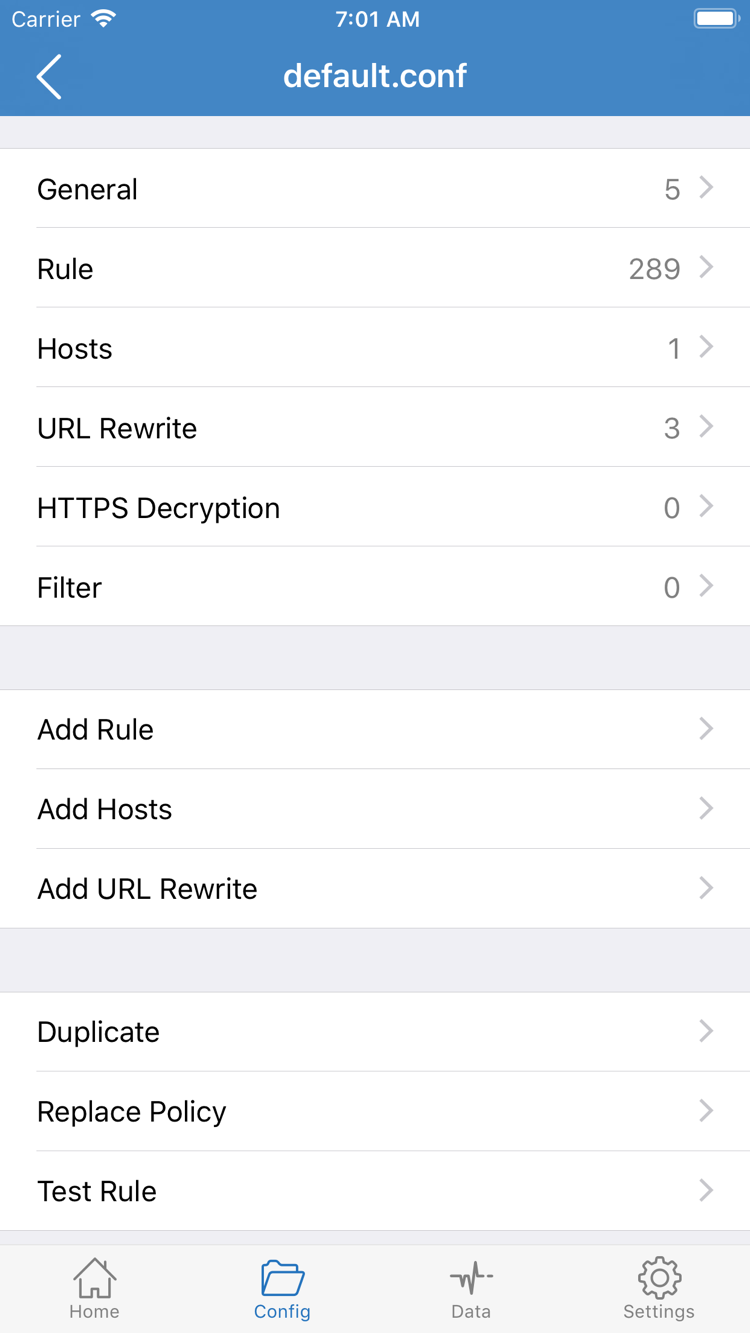
Choose Config for rule-based routing. Then open Config at the bottom and confirm that the configuration file you want to use is selected, not merely listed. Inside the file, you can find sections such as General, Rule, Hosts, URL Rewrite, and HTTPS Decryption. For a first connection, check that the existing Rule and policies match your needs. You do not need to adjust every section or enable HTTPS Decryption to establish a basic connection.
Rules in Rule are usually matched from top to bottom. The first matching rule determines the policy for that connection. DOMAIN-SUFFIX matches domain suffixes, IP-CIDR matches address ranges, and FINAL applies when none of the preceding rules match. PROXY and DIRECT specify proxy and direct routing respectively. Before using Add Rule, check the position of existing rules and their policy names to avoid placing a broad rule above more specific rules.
Proxy and Direct: Distinguish the route
Proxy sends connections handled by the client through the selected proxy route, which can reduce rule-related differences during troubleshooting. It does not repair an unavailable server. Direct uses a direct route and should not be used to prove that a proxy server works. If a website is already accessible on the current network, it may open normally even when Direct is selected.
For this setup, choose Config with the existing configuration and note the current mode. If you temporarily switch to Proxy for comparison, restore the original setting after testing. Confirm that rules work by checking actual connection records; the presence of a Config file alone does not prove that routing is correct. Next, return to Home, select a default server, and connect.
STEP 03 / CONNECT
Select a Default Server and Connect
Return to Home and tap the server you want to use in the SERVER group. A dot marks the selected entry; use it to confirm the default server rather than relying on which entry appears first in the list. Opening an entry's details is not the same as selecting it. After checking the parameters, return to the list and confirm that the dot still marks the server you plan to test.
Once the default server is set, turn on the switch at the top of Home. The first time you enable it, the system asks for permission to add a VPN configuration. Confirm that the request is from Shadowrocket, allow it, and complete device authentication as required by the system. This permission lets the client handle the relevant network traffic; it does not create a server or restore an expired subscription.
After granting permission, return to Shadowrocket and check whether the top still says Not Connected. If the switch immediately turns off, first address a system permission or configuration setup issue; do not change DNS straight away. If the connection is established, continue to the next step. A VPN indicator in the system only shows that the related connection is enabled. It does not by itself confirm that the remote server, DNS, and destination website are all working.
For the first verification, avoid setting complex On Demand conditions or enabling multiple VPN configurations that handle network traffic at the same time. First make sure a manual connection is stable, then add automatic conditions one at a time. If you switch to another server, note the current entry and test result first, then repeat the same test after switching. This avoids comparing results when the destination, network, and server have all changed.
If you canceled the system permission request, return to Home and try the switch again, watching for the system prompt. If the device is restricted by a management policy, check the VPN settings allowed by the device itself. Once the basic connection is established, keep the current network unchanged and use Connectivity Test together with an actual visit to confirm the result.
STEP 04 / VERIFY
Use Real Requests to Verify the Connection
Tap Connectivity Test on Home and check whether the client returns a result. The test method affects what the result means, so values from different Test Method settings cannot be compared directly. A successful test means that a response was received under the conditions tested; it does not mean every website is accessible. The reported duration is not download speed and should not be treated as a bandwidth measurement.
Next, open a browser and visit a destination you know is working and can evaluate clearly. Do not open many pages at once or rely only on whether a cached page still appears. Refresh the destination once to confirm that a new request is made, then return to Shadowrocket and check the status. If the test succeeds but one website fails, distinguish between domain resolution, rule routing, and the website's own response instead of deleting the entire configuration.
When using Config, also check the recent connection record in Data. Find the destination by access time and verify its domain or address, matched rule, and final policy. Refer to the information shown in the current interface. If the result is DIRECT, first check whether a rule is supposed to send it direct. If a broad rule above it matched when you expected PROXY, adjusting the rule order is the appropriate next step.
To verify routing, visit one destination expected to use Direct and one expected to use a proxy, then check each record. Whether a page opens does not distinguish between the two routes, because the same destination may be accessible through either one. A request appearing in the record also does not mean it ultimately succeeded; check the page and any error messages as well.
After one round of testing, note four details: whether the local connection uses Wi-Fi or cellular, the current default server, the Global Routing mode, and the destination that failed. Change only one of these conditions at a time. For more detail on what to observe during an initial test, read First Connection and Connectivity Test. If everything worked, the basic setup is complete.
STEP 05 / DIAGNOSE
Check Common Failure Points
When something goes wrong, keep the current configuration and note which step failed. An import failure, a switch that will not stay on, a test timeout, and an issue with one website are different problems with different ways to investigate them. Check the items below in order and repeat the same destination test after each one. This usually makes the cause easier to identify than changing the server, DNS, and rules all at once.
First check the local network and input
Disconnect Shadowrocket first and confirm that the current network can access websites normally. If public Wi-Fi requires sign-in, complete that step first. If only one network fails, try another network of your own for comparison. If the result improves after switching networks, investigate the original network conditions rather than rewriting the entire Config immediately.
If a subscription will not update, check that the full link is correct, that it has not expired, and that it is reachable on the current network. A failed subscription update does not necessarily remove existing entries or mean they have all become unusable. If a server cannot connect after import, return to its parameter page and check Type, Host, Port, authentication details, TLS, and transport settings in order. When contacting your service provider, describe the specific error without sharing the link or authentication details.
Then distinguish server issues from rule issues
If every destination fails, first confirm that the correct default server is selected, then compare the result with another server you already have. If access works under Proxy but fails after restoring Config, check Rule match order, the specified policy, and DNS-related settings. If only certain domains fail, inspect the records for those domains first rather than assuming the whole connection is down.
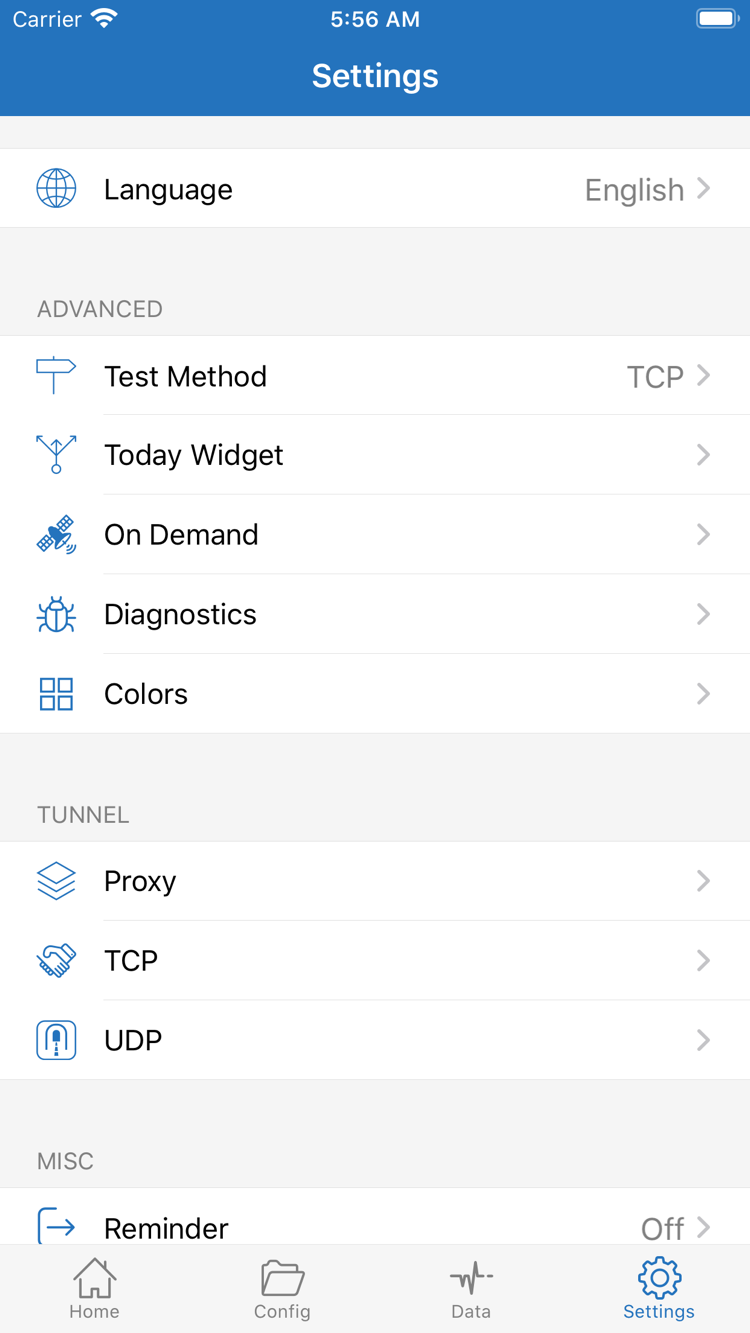
In Settings, you can check Test Method to make sure successive tests use the same method; use Diagnostics when you need more error details. Diagnostic records may include domains, addresses, and configuration details, so remove personal information before sharing them. On Demand can affect connection behavior according to its conditions. If the connection restarts after a manual disconnect or changes when you switch networks, check whether a related condition is enabled.
Finally, return to the simplest testable setup
Before changing DNS, note the original value. Change one setting at a time and make a new request. After testing, restore any temporary changes used for comparison so settings with unclear purposes are not left behind. A useful record should state which network, server, mode, and destination were involved and what happened. This helps distinguish local network, server parameter, and rule-matching issues.
For questions about store region or restoring a purchase, see the App Store Access Guide. If access is slow but works, continue with Layered Checks for Slow Speeds. To review the entire sequence, repeat Step 01 of this guide rather than importing the same subscription repeatedly.
How to Get Shadowrocket on Other Platforms
This page demonstrates the iPhone / iPad interface. The iPhone / iPad version is available on the App Store for a one-time payment of $2.99. The Mac (Apple Silicon and Intel) / Windows / Android / Linux versions are free. Get desktop and Android installers from this site's download page; installers are provided at /dl/ on this site.
If the system blocks the first launch, check the download source, then follow the installation and access instructions: on macOS, check “Privacy & Security”; on Windows, select “More info” in SmartScreen; on Android, check “Allow from this source”; and on Linux, follow the installation permission steps for the package format. Do not repeatedly download the installer without addressing the prompt.
A one-time app purchase is not a service plan. Get subscription links and server details from your service provider.