All-platform client · Official guide

Shadowrocket User Guideand Rule Routing Setup

Shadowrocket is a cross-platform rule-based proxy client that routes connections using rules. iPhone / iPad: $2.99 once on the App Store; Mac, Windows, Android, and Linux versions are free.

Current version · iPhone / iPad: $2.99 once on the App Store; Mac, Windows, Android, and Linux: free

Getting started: subscription import and connection steps ›
ConfigOn DemandWireGuard
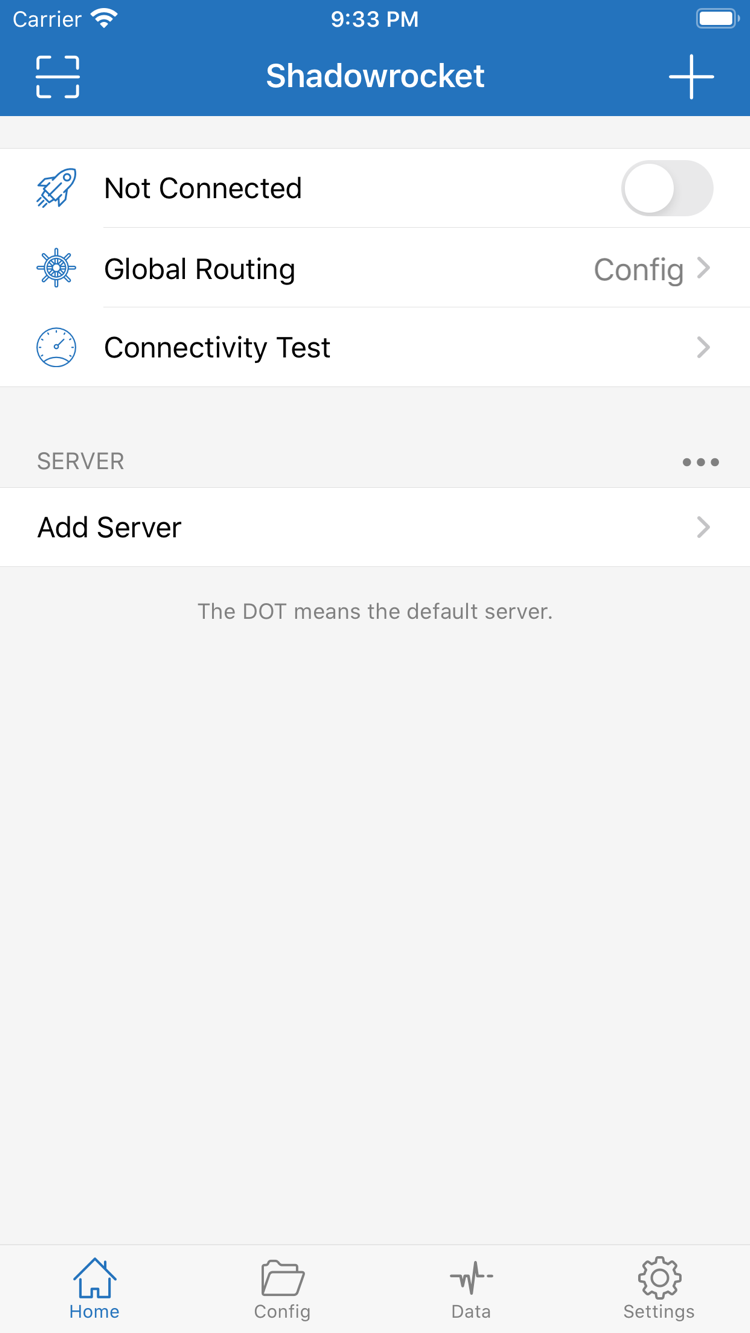
Official Shadowrocket Home screenshot showing the connection switch, Global Routing, and server list

Shadowrocket handles each connection with rules, On Demand, and subscription management

Start with an existing subscription or server details, then choose which server connections use, which requests connect directly, and when connections are established automatically. Config files define rules; test tools verify the results.

Configuration and connections

From rule matching to subscription updates

These configuration snippets illustrate syntax; they are not server configurations that can connect as-is. Example domains and links are placeholders.

Rule routing: first match wins

After selecting Config in Global Routing, connections are handled in the order of rules in the current Config file. DOMAIN-SUFFIX matches domain suffixes, IP-CIDR matches address ranges, and FINAL handles requests that did not match earlier rules. Specific exceptions should generally appear before broader rules. When editing Config, check both the match conditions and whether the policy name exists; PROXY and DIRECT determine where a connection goes, not its quality. After making changes, retry the same destination to confirm which rule matched before adjusting anything else.

▸ View the related steps
[Rule]
DOMAIN-SUFFIX,example.com,PROXY
IP-CIDR,192.168.0.0/16,DIRECT
GEOIP,CN,DIRECT
FINAL,PROXY

On Demand: connect based on network conditions

On Demand determines whether to establish a connection based on the network environment; it does not replace domain-based routing. First, make a manual connection from Home and confirm that the server, permissions, and rules work. Then check the Wi-Fi and cellular conditions under On Demand in Settings. Change one network condition at a time and observe the connection state after switching networks. To temporarily stop automatic connections, check On Demand as well as the Home switch. On-demand conditions and Config rules operate at different layers, so test them separately to identify what changed the connection behavior.

▸ View the related steps

On Demand

  • Wi-Fi
  • Cellular
  • Settings → On Demand

Network conditions determine when to connect; Config determines how traffic is routed after connection.

Multiple protocols: use the server's parameters

Shadowrocket supports protocols including Shadowsocks, VMess, VLESS, Trojan, Hysteria2, and WireGuard. When adding a server, choose the matching Type in Add Server, then check the address, port, authentication details, and transport parameters individually. The same protocol name does not mean every field is interchangeable; TLS, server names, and transport paths can also affect the connection. Prefer importing complete details from your provider, and preserve the original capitalization and symbols when entering them manually. Do not infer speed from a protocol name alone; verify the parameters first, then test on your local network.

▸ View the related steps

Add Server → Type

ShadowsocksVMessVLESSTrojanHysteria2WireGuard

Host, Port, and authentication details must match the existing server configuration.

Import and update subscriptions: manage server lists

Get subscription links from your provider. Subscriptions maintain server details in bulk, while Config files manage rules and related settings; they serve different purposes. After adding a Subscribe entry, check that the expected items appear in the list, select a default server, and run a test. An update reads the remote content again and may change names or remove invalid entries, so note important manual changes beforehand. If an update fails, check that the link is complete and still valid, and that the current network can access it. Do not post links containing personal credentials publicly.

▸ View the related steps

Subscribe

https://example.com/sub?token=xxxx

Format example only; no connection service is provided. After importing, select a server and verify the connection.

After connecting, check settings using status and logs

Global Routing has three modes: Config, Proxy, and Direct. Use Config to route requests according to rules; use Proxy to temporarily check the selected server's connection; use Direct to rule out effects from the proxy path. Changing modes does not edit the Config file or fix incorrect server parameters. During troubleshooting, note the original selection, restore it after testing, and retest the actual destination. If a request that should connect directly is routed through a proxy, check the current mode first, then the rule order.

Learn how to choose Global Routing ›
Get it for your device

Shadowrocket downloads for all platforms

There are 2 acquisition options: iPhone / iPad costs $2.99 once on the App Store; Mac, Windows, Android, and Linux are free. The links below go to the download page, which also explains installation and system permissions.

iPhone / iPad

$2.99 one-time on the App Store; other platforms are free. Use the Apple Account used for the purchase; both devices share the purchase record. Check the App Store product page for system requirements.

First check the store region and app identity, then complete the purchase. If you have already purchased it, look in your purchased items before deciding from search results whether another purchase is needed.

Mac

Free · Apple Silicon / Intel. iPhone / iPad costs $2.99 once on the App Store; other platforms are free.

Check the chip type in About This Mac, then choose the matching version on the download page. If macOS blocks the app, follow the download page's Privacy & Security instructions. Do not repeatedly switch to unknown files in response to a warning.

Windows

Free. iPhone / iPad costs $2.99 once on the App Store; Mac, Windows, Android, and Linux are free.

The download page provides a Windows 64-bit installer. If SmartScreen appears, first confirm the file came from this site's download page, then select “More info → Run anyway.” See the installation permissions section for full steps.

Android

Free. iPhone / iPad costs $2.99 once on the App Store; Mac, Windows, Android, and Linux are free.

Use the arm64 download link on this site's download page. If Android requests permission, enable “Allow from this source” only for the browser or file manager used for this installation. You can turn it off afterwards.

Linux

Free · deb / rpm / AppImage. iPhone / iPad costs $2.99 once on the App Store; other platforms are free.

Choose a package format for your distribution rather than guessing from the browser's detection. AppImage requires executable permission; deb and rpm use their respective package managers. The download page has full instructions and permission guidance.

App identity and purchase records

Check official app details before importing a Config

Shadowrocket is a closed-source commercial app. This is the Shadowrocket official website and guide, with product download links, configuration guidance, and troubleshooting steps.

  • Developer: Shadow Launch Technology Limited
  • App ID 932747118
  • iPhone / iPad: $2.99 once · other platforms free
Read the complete App Store guide ›

Check the developer, official icon, and app ID

On the App Store product page, confirm the name is Shadowrocket, the developer is Shadow Launch Technology Limited, and the product link contains app ID 932747118. The icon should match the official icon in this site's header. Name and icon can help with identification, but do not replace checking the developer and app ID. Do not rely only on search ranking or a similar name; check the product page directly to avoid selecting a lookalike listing.

Store availability depends on the account region

App Store search results depend on the current store region, and the app is not available in the mainland China store. If it does not appear in search, first check the country or region under Media & Purchases in your Apple Account, then verify the product page you opened. Store region and device language are separate settings; changing the system language does not automatically change the store. Before changing regions, read the system prompts and check whether your balance, existing subscriptions, and payment method meet the requirements.

Check purchase records separately when restoring on a new device

iPhone / iPad costs $2.99 once on the App Store; Mac, Windows, Android, and Linux versions are free. iPhone and iPad can share an app purchase record when they use the same purchasing account. After reinstalling or changing devices, sign in to the original purchasing account and look for Shadowrocket in purchased items. Getting the app again does not automatically restore all local configurations, so check subscriptions, Config files, and the default server after restoring the purchase. Family Sharing availability depends on what the product page and family settings show.

Download desktop and Android versions from this site's download page

Mac has separate Apple Silicon and Intel versions, and Windows, Android, and Linux each have their own packages. Installers are provided from this site's /dl/shadowrocket/ path, with the download page showing the appropriate link for each device. If the system blocks the app on first launch, confirm its source, then follow the permission guidance on the download page. After an app update, recheck key settings. Server availability and subscription updates still depend on your existing service details and current network.

The app, subscriptions, and Config files have different roles

The app establishes connections and applies rules; subscriptions provide and update server lists; Config files define routing and other behavior. Getting the app does not provide a server, and importing a subscription does not mean the correct rules are enabled. When troubleshooting, identify the layer first: check the import if the list is empty, parameters and network if a test fails, and Global Routing and Config if traffic goes to the wrong destination. Separating these roles before changing settings makes it easier to preserve information that is already working.